In this guide
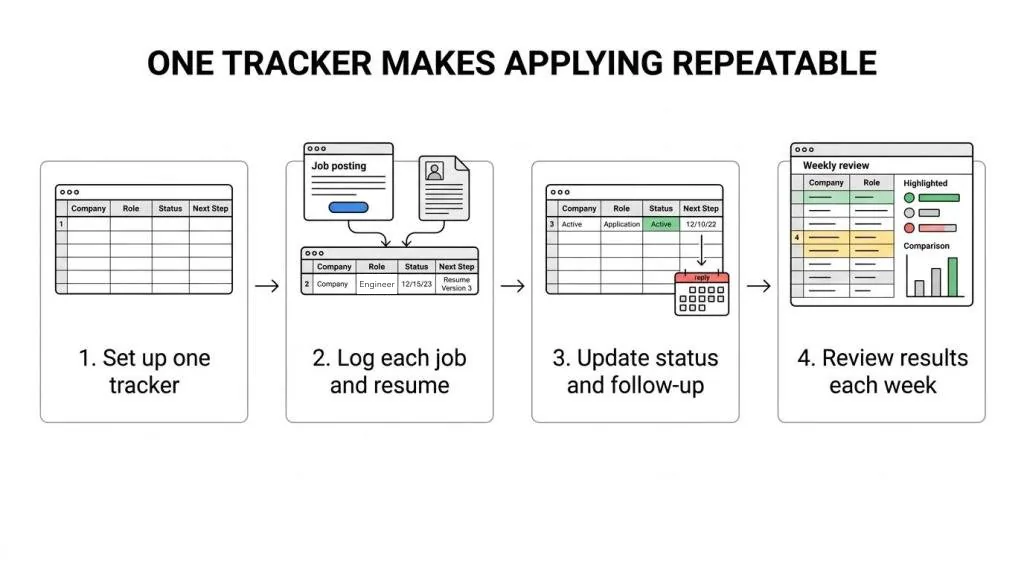
Once you have applied to more than a handful of jobs, the details start to slip. Which version of your resume went to which company? How long ago did you apply? Were you meant to follow up this week? An application status tracker answers those questions in one place, so you spend your time on the next application instead of reconstructing the last one.
The short version
- Keep one list with every job, its stage and the next thing you plan to do.
- Record the exact resume you sent, so interview prep starts from what the employer read.
- The ATSPrep tracker saves to your browser, no account needed, so download a backup before you clear your data or switch devices.
Keep every job, its status and the next step in one list
Job searches spread out fast: company career pages, job boards, recruiter messages and referrals each keep their own record, and none of them talk to each other. A personal tracker is the one list that covers all of them.
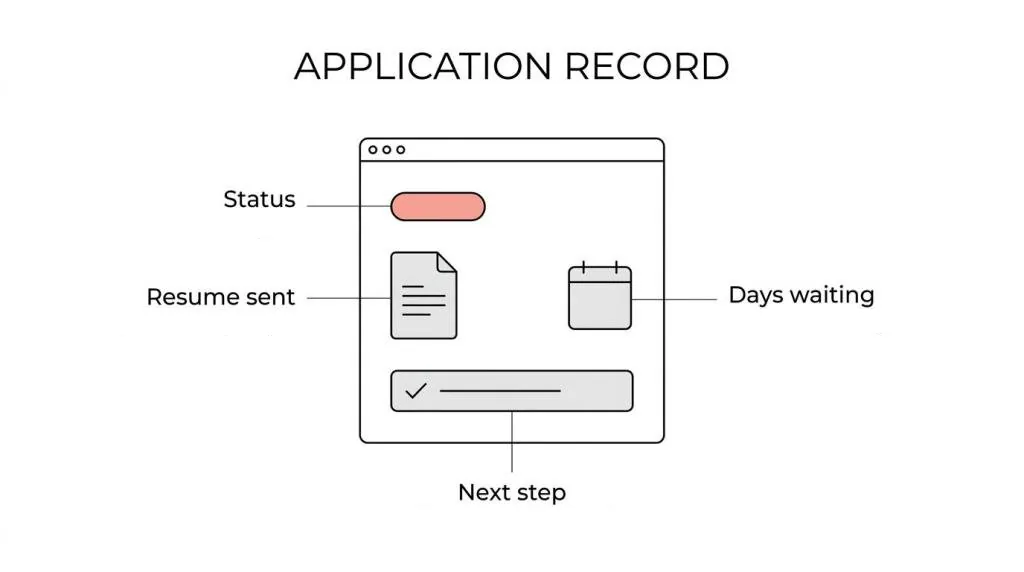
The ATSPrep tracker is a board with five columns. Each job is a card that shows the company, the role, when it last moved and, for jobs you have applied to, how many days it has been waiting for a reply.
| Column | What goes there |
|---|---|
| Saved | Jobs you want to apply to |
| Applied | Sent, with the days since you applied |
| Interviewing | Screens and interviews |
| Offer | Offers to weigh up |
| Closed | Rejected, no reply, or you withdrew |
Connect each application to the resume you sent
Most trackers stop at where you applied. The harder question comes later, when a recruiter calls about a role you applied to three weeks ago and you have tailored your resume twice since then.
Each job can point to the resume you used, picked from the versions you saved in the Studio. You can also keep a copy of exactly what you sent, with the date and any answers you gave on the application form. That copy does not change when you edit your resume later, so you prepare for the interview from the document the employer actually read.
A saved copy comes from a resume version you saved in the Studio. Save a version before you apply, then record it on the job once it's sent.
How to track a job application, step by step
Only the company and job title are required. Everything else can wait until you need it.
- Add the job. Open the tracker and choose Add job. Paste the posting link or description, check the company and title, and say whether you have applied yet and on what day.
- Attach the resume you sent. Open the job, pick the version under Resume you used, then open What I sent to keep a copy of it with the date you sent it.
- Set the next step. Under Next step, write what you will do, such as following up with the recruiter, and give it a date. The card shows when it is due and when it is late.
- Move the card as things happen. When you hear back, move the job to Interviewing, Offer or Closed. The tracker notes the day it moved, so the timeline builds itself.
Where your tracker data lives, and its limits
The tracker saves your board in your browser's local storage, on the device you are using. You don't need an account, and signed out your jobs are not stored on ATSPrep's servers.
That has trade-offs worth knowing up front. Clearing your browser data removes the board. Signed out, a phone and a laptop each keep their own board, and nothing syncs between them; sign in with Google and the same board follows you. To move or protect your jobs, download a backup from Your data and restore it on the other device, or export the board as a CSV for a spreadsheet. One board holds up to 300 jobs.
Use it for the long middle of a job search
The first week of a search is easy to keep in your head. The hard part is the stretch after that, when you are waiting on a dozen replies, interviewing for two roles and still applying to new ones.
This is where the tracker earns its place. A job that has sat in Applied for a week without a planned next step gets a gentle Follow up? prompt, and after 30 days it suggests marking the job as no reply. The tracker does not send emails or reminders; the prompts appear when you open it. Closing out quiet applications keeps the board honest about what is still live.
When a browser-based application status tracker fits
It suits people running their own search who want something faster than a spreadsheet and do not want to create another account.
- You tailor your resume for different jobs and need to remember which version went where.
- You apply through several sites and want one list instead of a login on each.
- You want follow-ups and dates next to each job, not in a separate calendar.
- You are happy to keep a backup file, since the board lives in one browser.
It is a poor fit if you need a board shared with a career coach, or automatic sync across devices. Backups move your board, but by hand.
Before you add the next job to your board. Free, in your browser, no sign-up needed.
- Resume keyword scannerPaste the posting to see what it asks for and what your resume misses, then save the job to your tracker.
- ATS resume checkerCheck that your resume reads cleanly as text before you send it.
- Job search Sankey diagram makerTurn your applications, interviews and offers into a chart you can share.
Sources and further reading
- Window: localStorage property, MDN Web Docs
- Storage quotas and eviction criteria, MDN Web Docs
Put it into practice on a real resume.
Each example is a complete resume with role keywords and bullets that show proof. Open one in the Studio and make it yours, no account needed.