Skip to content
ATSPrep
Build my resume

Changelog

What changed on ATSPrep, newest first, with the day each change went live. Follow by RSS

  1. Desk icons across the Studio

    The desk-object icons now go beyond the tools. Templates is a fan of pages, Score is a loupe and Download is a folder. The sidebar has a pencil cup and Pip, and the job tracker, template search and account page use them too.
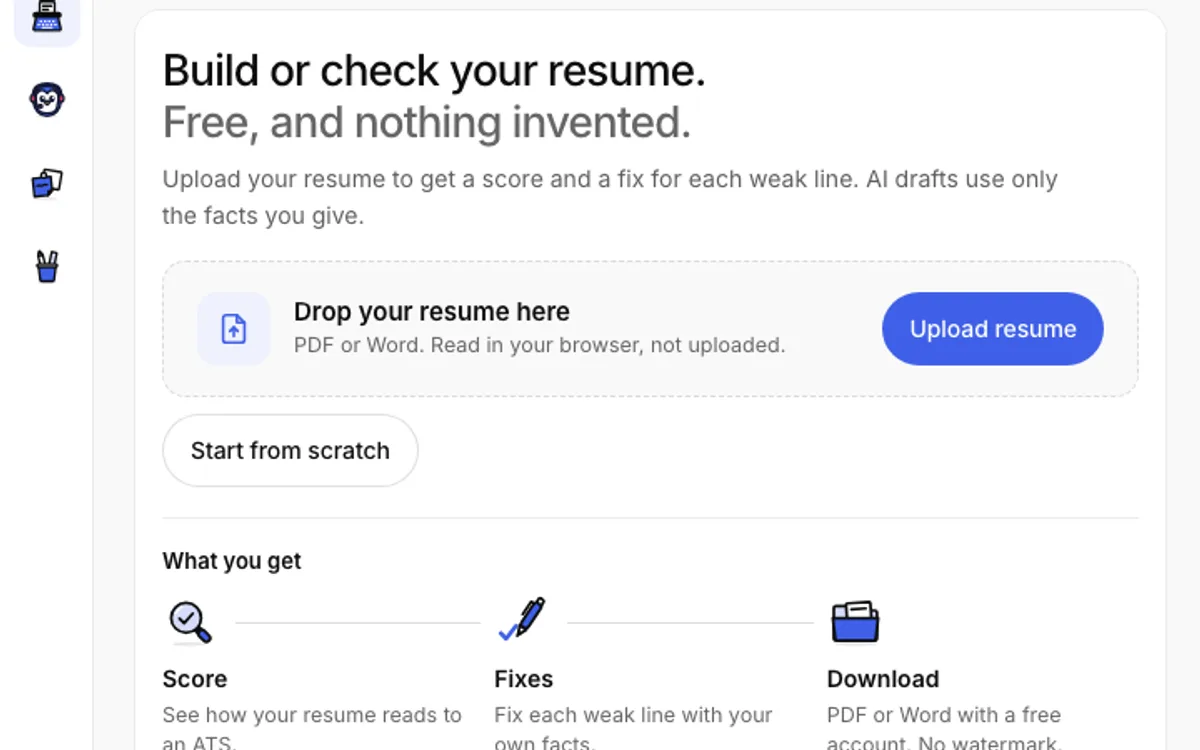
    Studio with the pencil cup in the sidebar and a loupe, pen and folder above Score, Fixes and Download.
  2. Your resumes, in one list

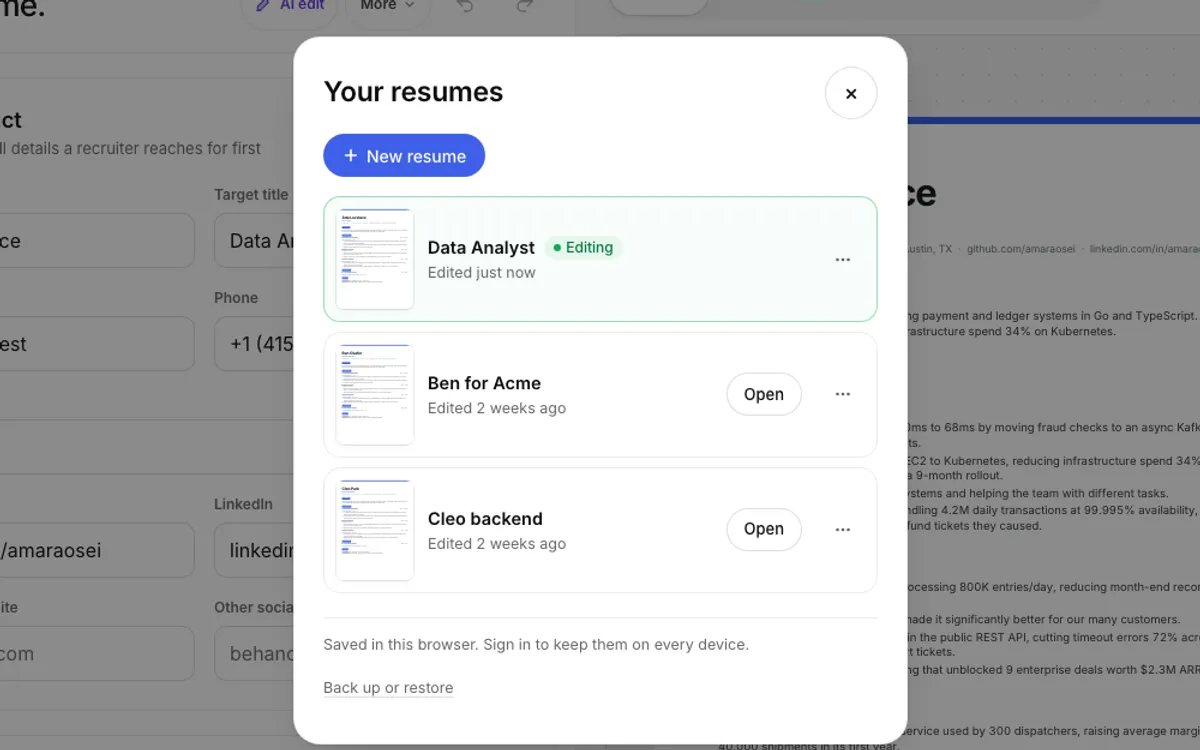
    Studio's saved versions are now a plain list called Your resumes. Each resume saves as you type, the one you have open is marked Editing, and you can rename it, copy it for another job or delete it from the list. Click the resume's name at the top of Studio to switch.

    Your old saved versions are all still there. Signed in, the list follows you to every device. Backup and restore moved to Your data on your account page, and Import now also takes a JSON Resume file.

    The Your resumes list with three resumes, the open one marked Editing.
  3. Lessons now feel like a call with Pip

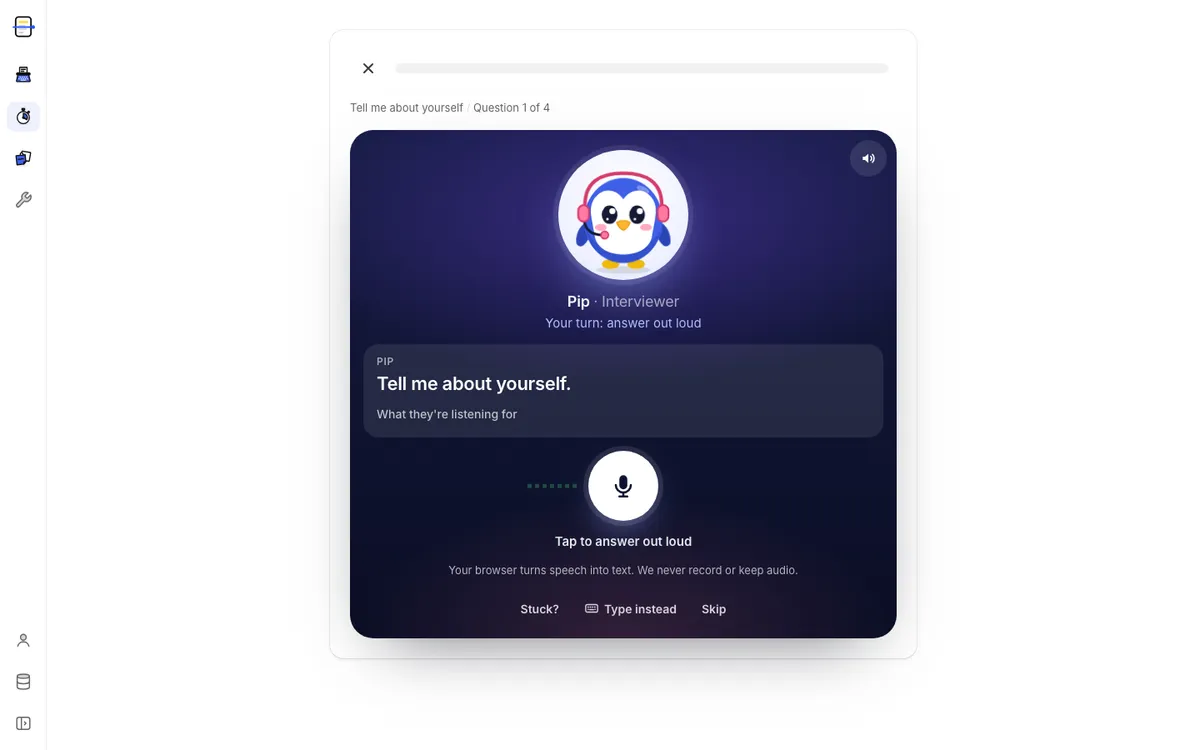
    Interview lessons now look like a practice call. Pip reads each question aloud, and you answer by tapping one big mic. The answer box only opens if you choose “Type instead”. A speaker button mutes Pip.

    If Pip's memory is on, Pip now and then greets you by name and starts with the skill your last call found weakest. With memory off, it never does.

    A lesson in call style: Pip asks “Tell me about yourself” above a big mic button.
  4. New tool icons

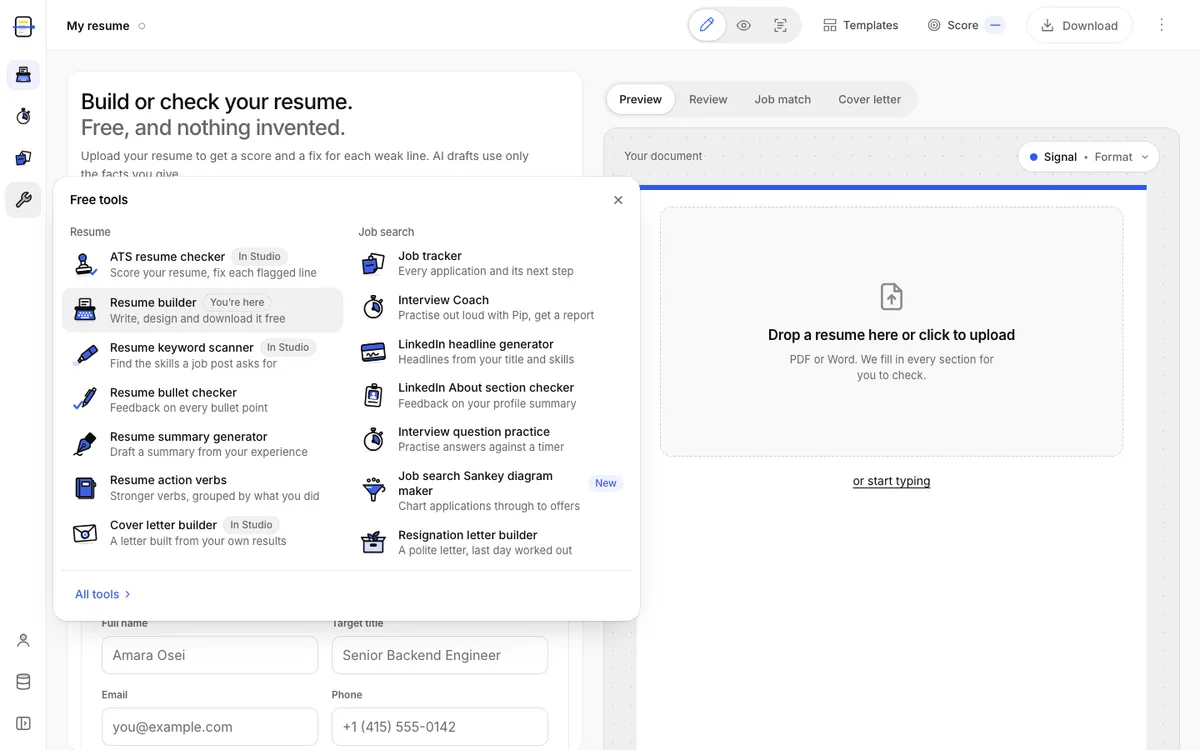
    Each free tool now has its own desk-object icon, like a stamp, a typewriter, a highlighter or a fountain pen. You'll see them in the Tools menu, on the tools page and in the Studio's sidebar.

    The Studio's Free tools panel, each tool with its new desk-object icon.
  5. Fix all with AI

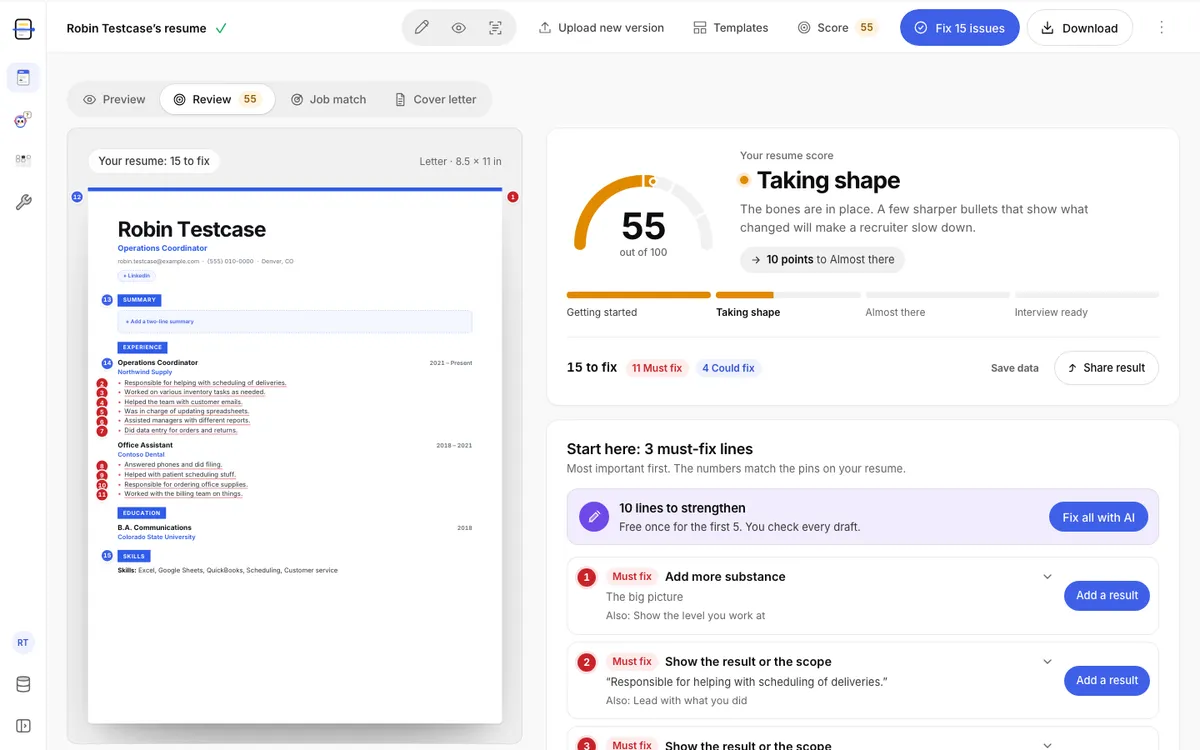
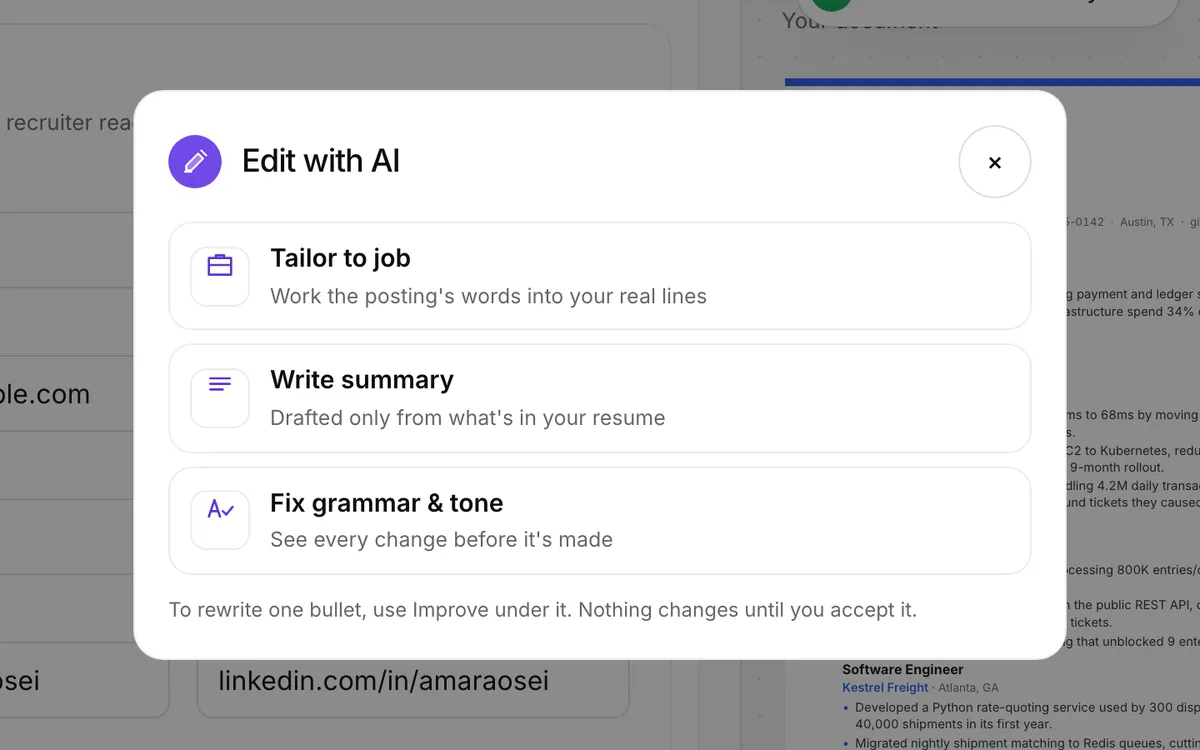
    In the Studio's Review, “Fix all with AI” drafts a better version of each weak line, all in one go. You check every draft: accept or discard it line by line, or apply them all. One Undo puts the whole pass back.

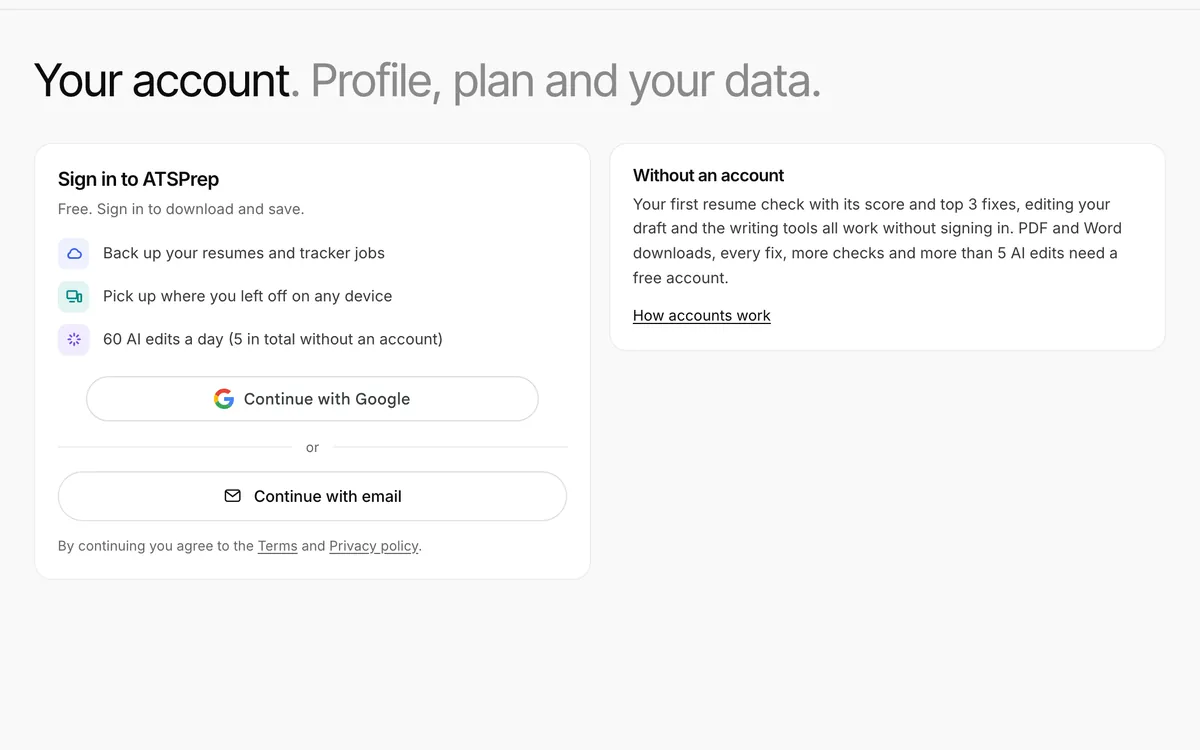
    With a free account, the first pass covers 5 lines, once. After that, Improve still works on any line, one at a time.

    The Studio's Review with a “Fix all with AI” bar: 10 lines to strengthen, free once for the first 5.
  6. Pip checks in at the good moments

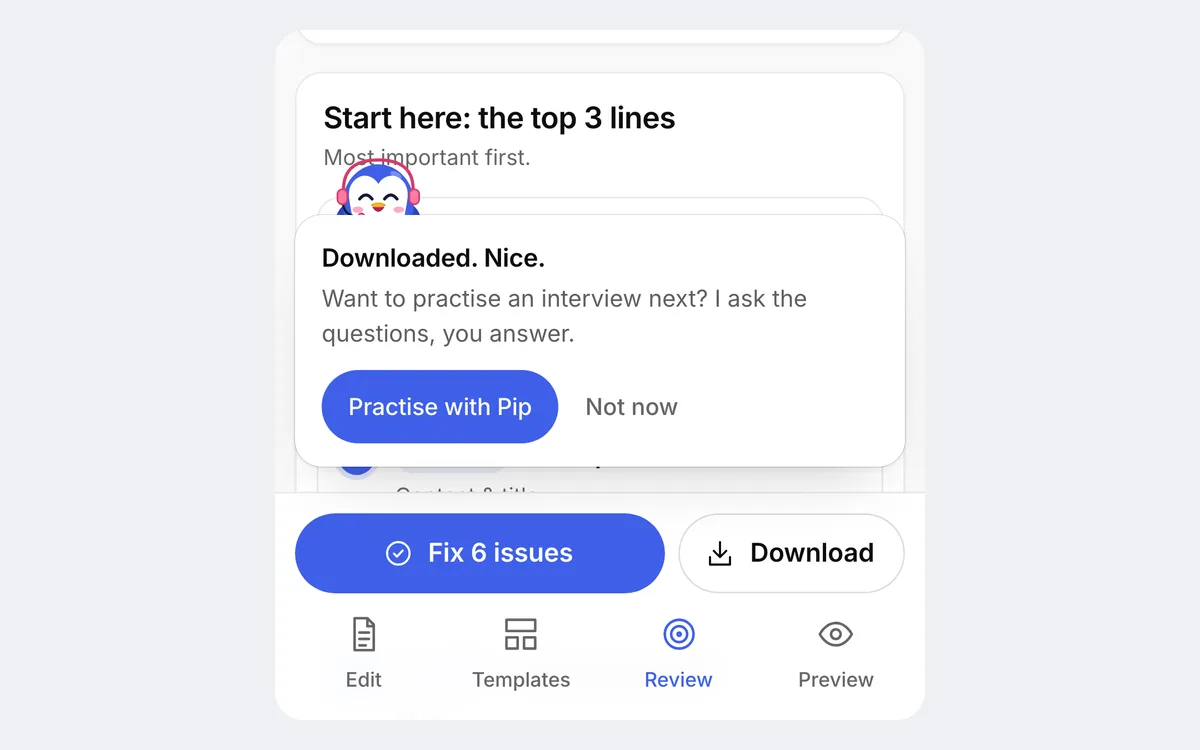
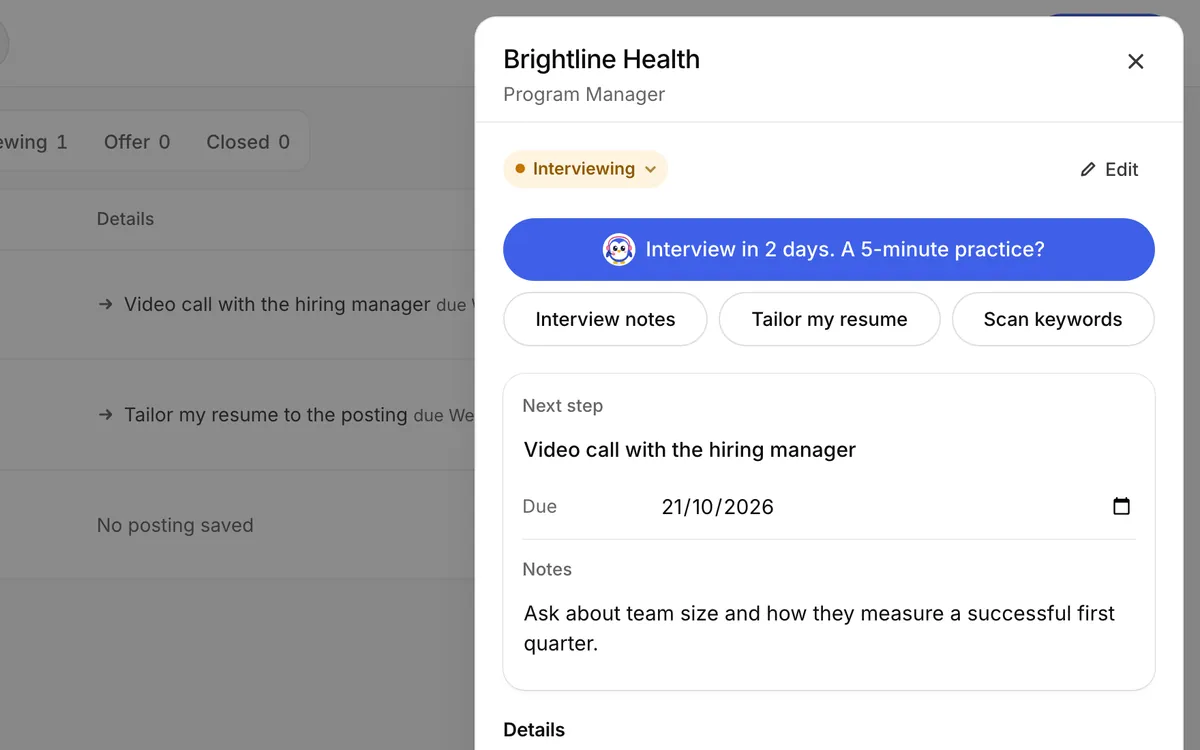
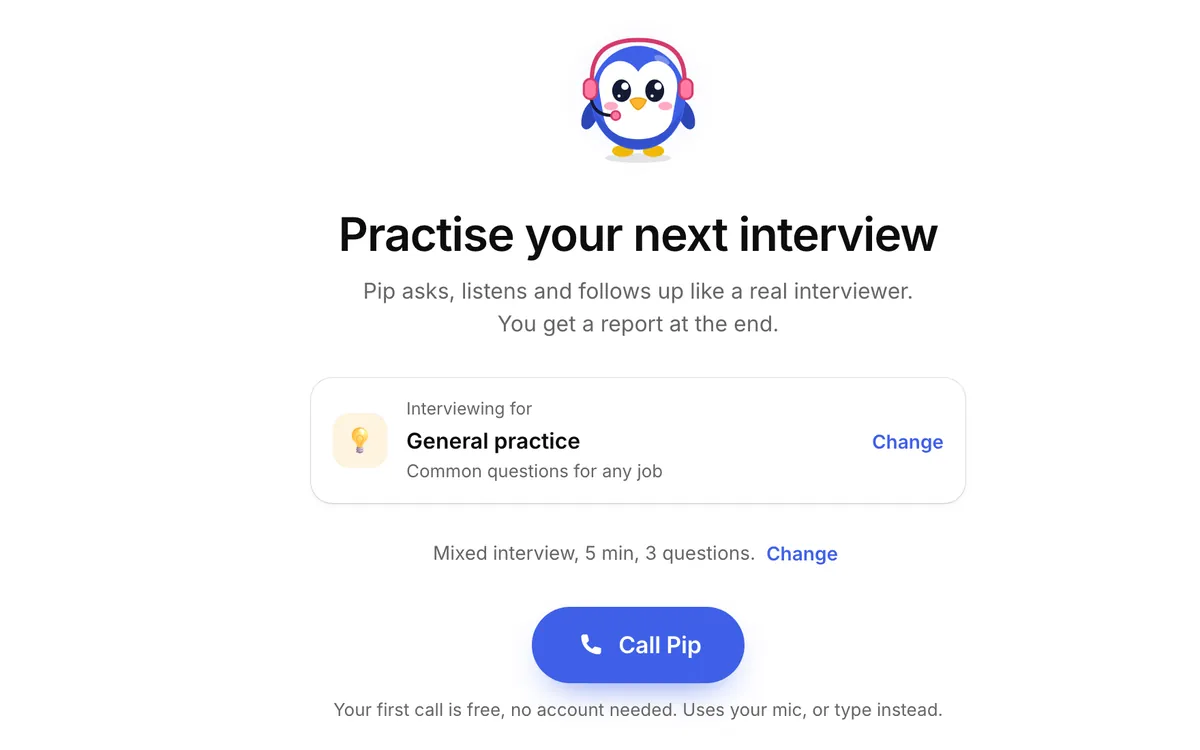
    When your Studio score reaches 80, or a download finishes, Pip pops up once to offer a practice interview. The same happens on the tracker when a job moves to Interviewing. Each nudge shows at most once, never covers a dialog or the Download bar, and “Not now” three times turns them off.

    Small extras: a shortcut tip for moving bullet lines with Alt and the arrow keys, and a lost Pip on the page-not-found screen.

    On a phone, Pip says “Downloaded. Nice.” above the Studio's Download bar and offers a practice interview.
  7. Shorter comparison pages with dated prices

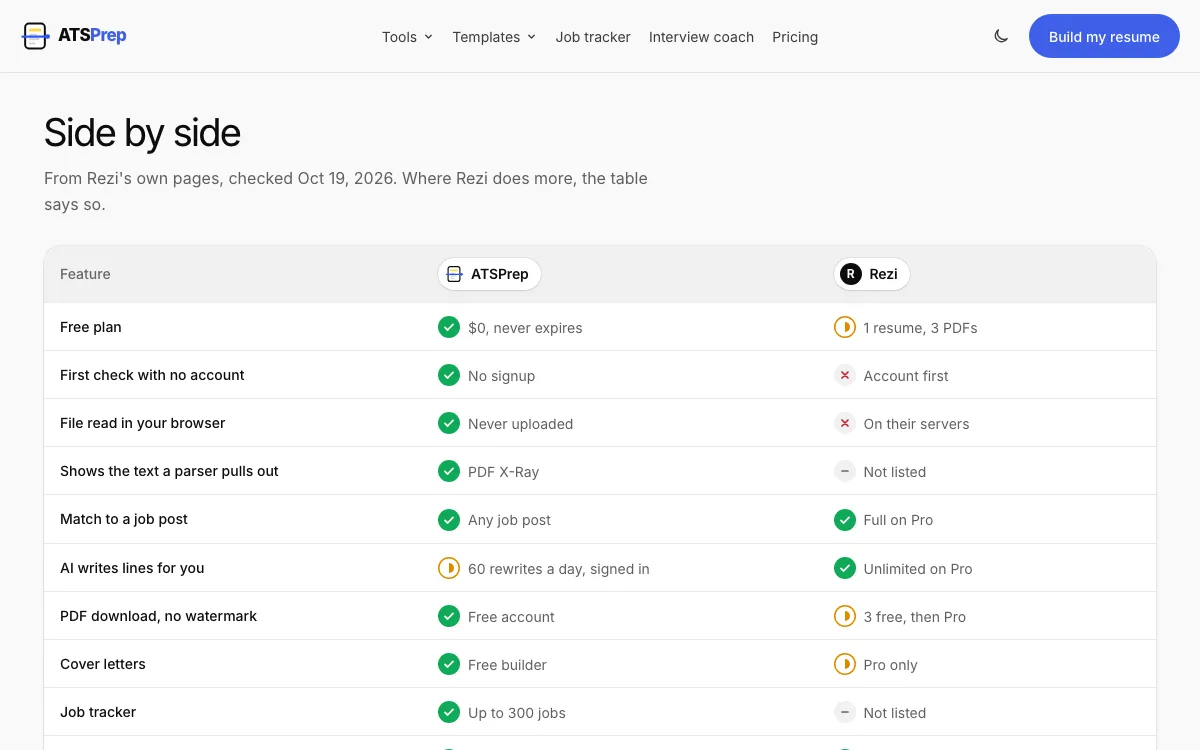
    The pages comparing ATSPrep with Rezi, Teal, Jobscan, Enhancv and Resume Worded are now about half as long. Each one shows the other tool's prices as we read them on its own pricing page, with the date we checked and a link to the source.

    A side-by-side table marks where each tool does more, and a short chart shows what a one-week, one-month or three-month job hunt would cost.

    The ATSPrep vs Rezi table: features side by side, with prices checked Oct 19, 2026.
  8. Pip remembers your last calls, on your device only

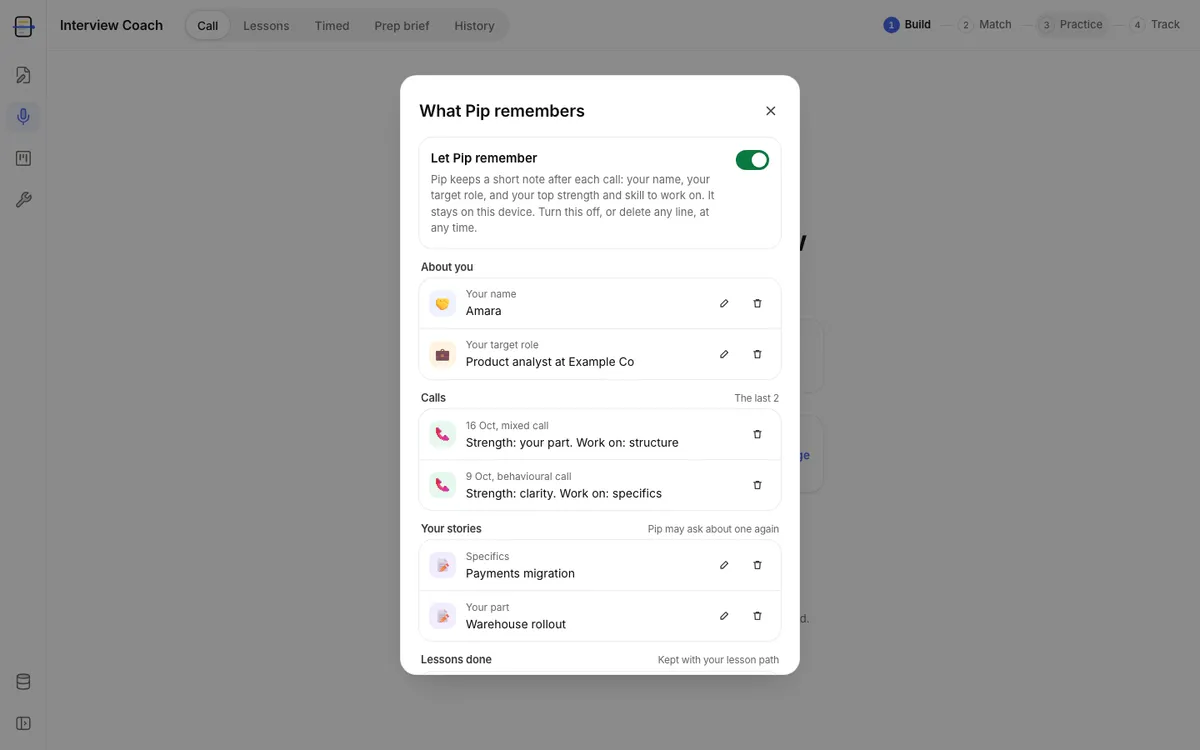
    Pip now keeps a short note of your last calls: the questions it asked, your top strength and the skill to work on. On your next call, Pip says a one-line welcome back, asks new questions and leans toward that skill. The report shows how you did compared with your last call.

    The note stays on your device. It keeps no transcript and no audio. Open What Pip remembers on the interview page to delete one line, delete everything, or turn it off.

    What Pip remembers, with a sample name, target role, two past calls and two story titles
  9. Updates no longer interrupt you mid-edit

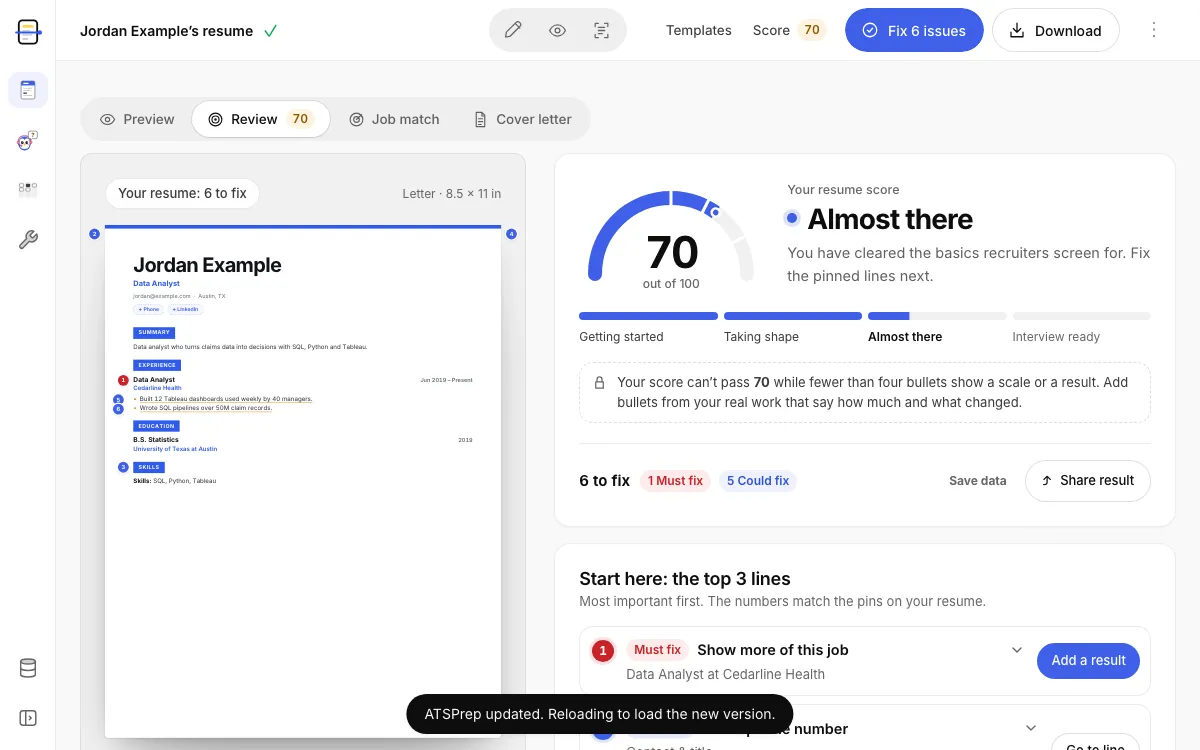
    We update ATSPrep several times a day. A page you already have open now keeps working after an update, so buttons such as Write with AI still open.

    If a page does need the new version, it waits until you stop typing and nothing is running, such as an AI edit or a call with Pip. Then it reloads and keeps your place. Your draft is never lost.

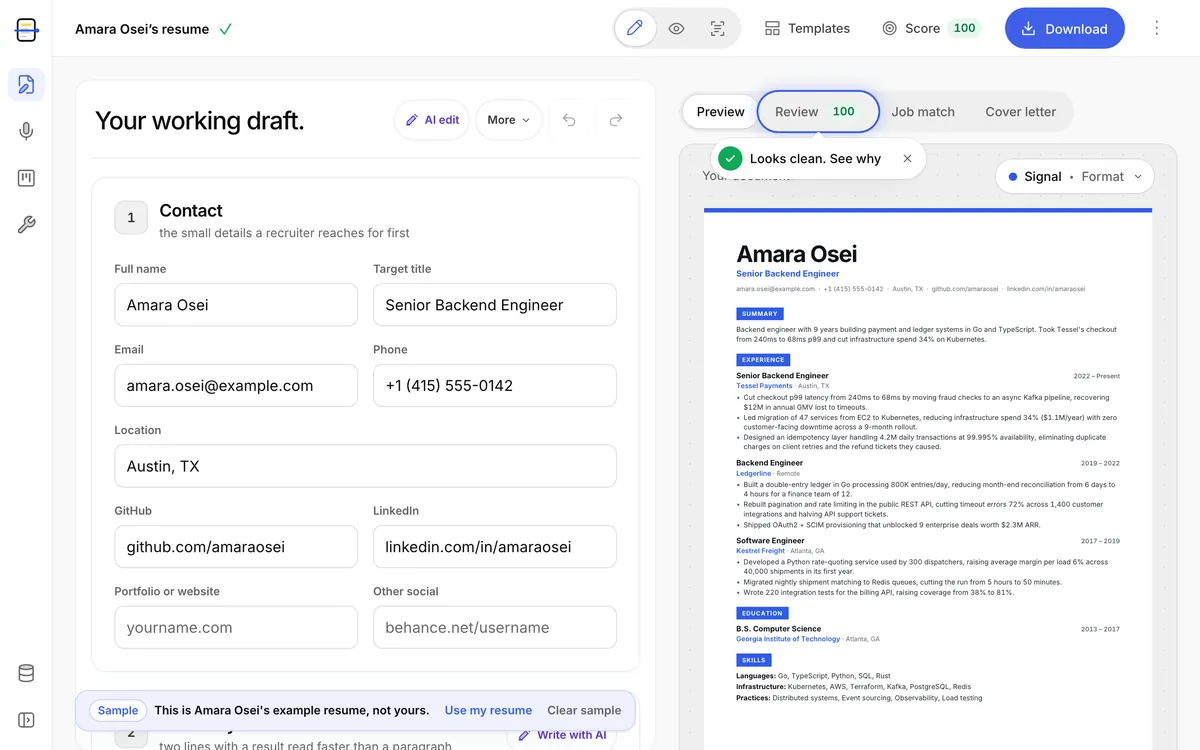
    The Studio with a sample resume and the short message shown before a reload
  10. Re-uploading your Word file now keeps the lines you fixed in Studio

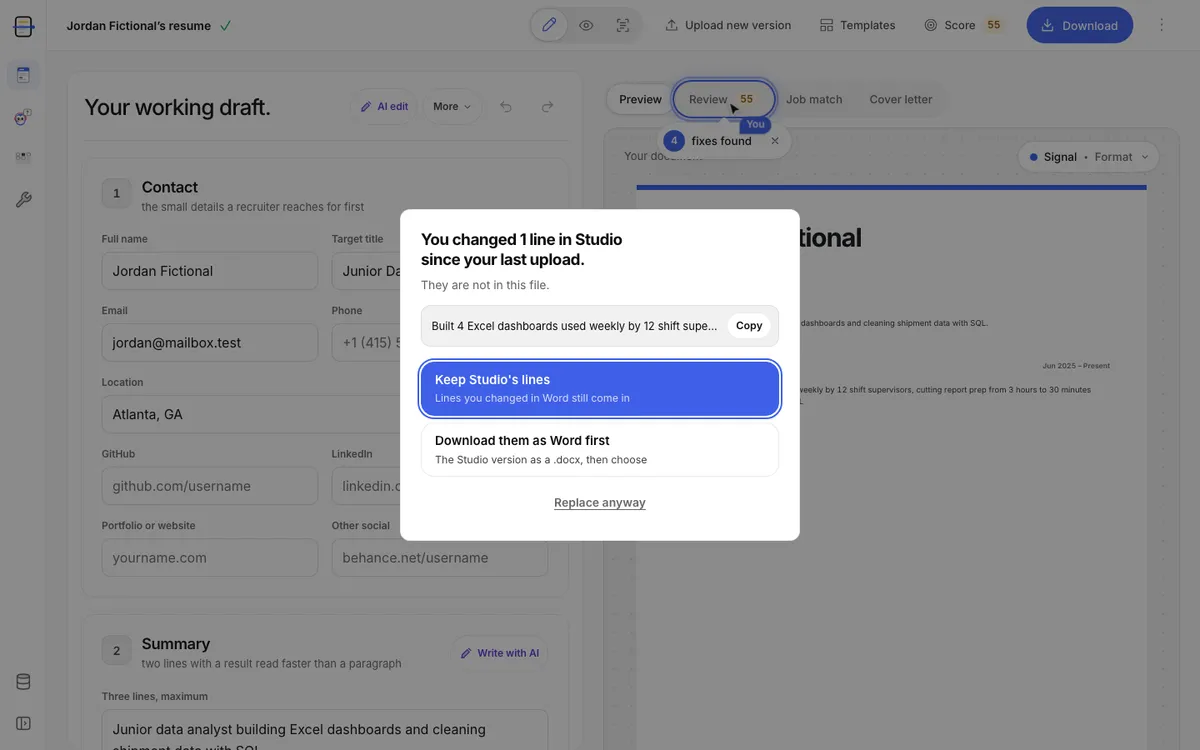
    If you fixed lines in Studio and then upload a new version of your file, ATSPrep tells you which Studio lines are not in it. Keep Studio's lines is the default, and lines you changed in Word still come in. You can also download the Studio version as Word first.

    Imported resumes have an Upload new version button in the top bar. In the job tracker, a Due today strip shows the steps due today, and you can download a backup of your data from the Your data menu.

    The re-upload dialog with Keep Studio's lines selected, on a sample resume
  11. Interview lessons, a tools menu and new tool icons

    The interview coach now has steps: a prep brief, short lessons, timed practice, then a call with Pip. After a call, it suggests the next lesson.

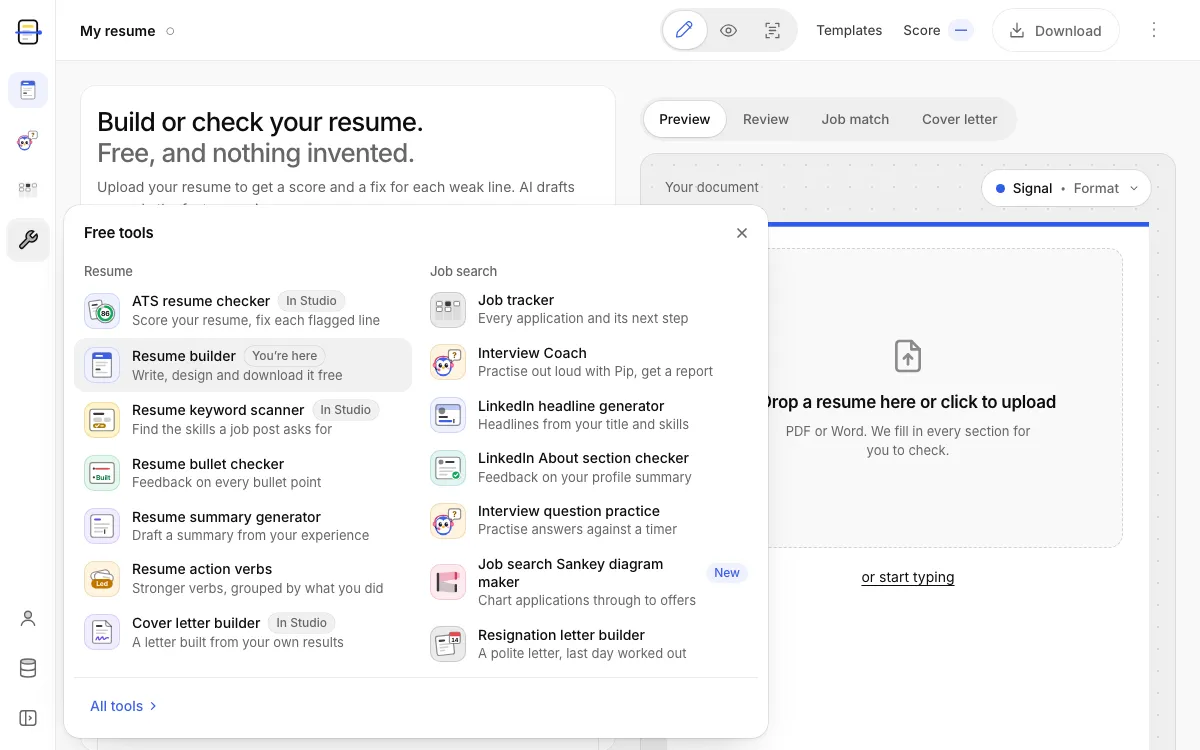
    In the Studio, the job tracker and the interview coach, the Tools button on the side opens every free tool. On a phone, it opens as a sheet. Each tool has a new icon that shows what it does.

    Also new: shorter privacy and terms pages with a list of contents, this changelog with an RSS feed, and some buttons that had no padding now look right.

    The Studio with the free tools menu open, showing each tool's icon
  12. Pip asks about the job you want

    Paste a job post before a practice call, and Pip asks questions from it. You can see where you are, such as question 2 of 6, and you can pick a 15-minute call.

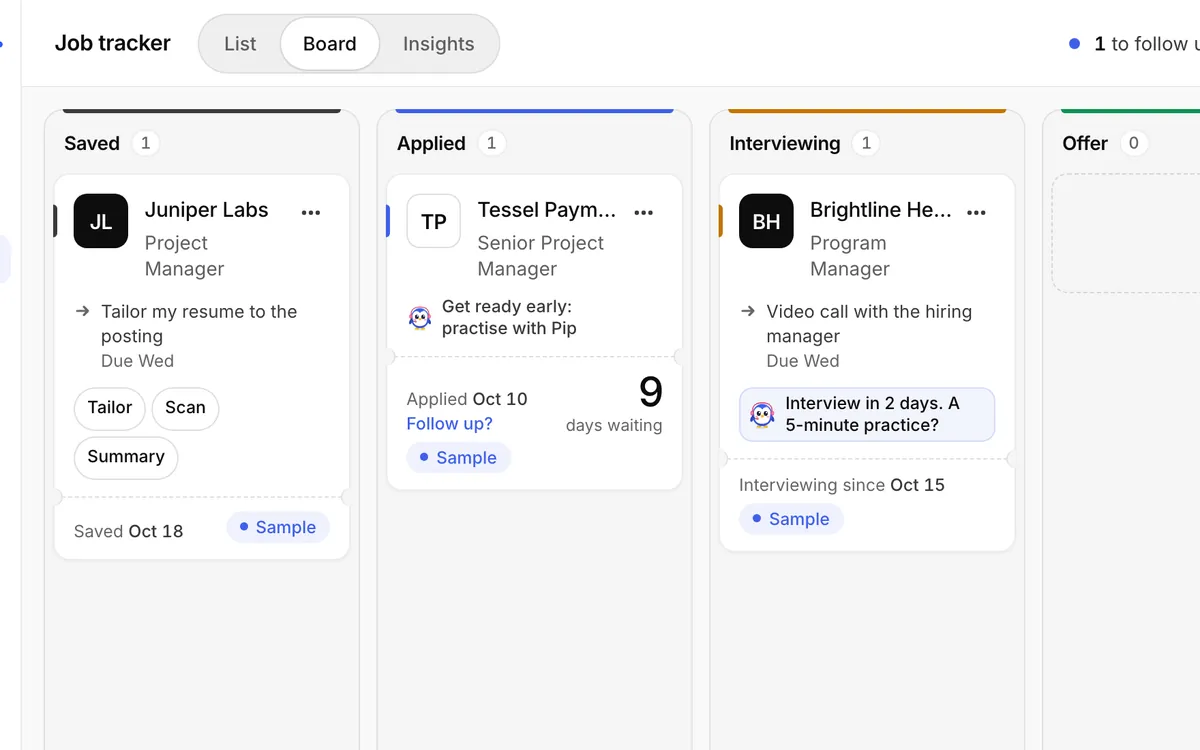
    The interview coach is now in the main menu. In the job tracker, applied and interviewing jobs have a link to practise that job with Pip.

    The job tracker board with Pip practice links on sample jobs
  13. A calmer Studio

    The Studio now has one header row, like the demo on the homepage. Messages show in a corner and close on their own, and the score rail is slimmer, so your resume gets more room.

    The Studio with a sample resume, its header row and the score rail
  14. Scanned and two-column resumes

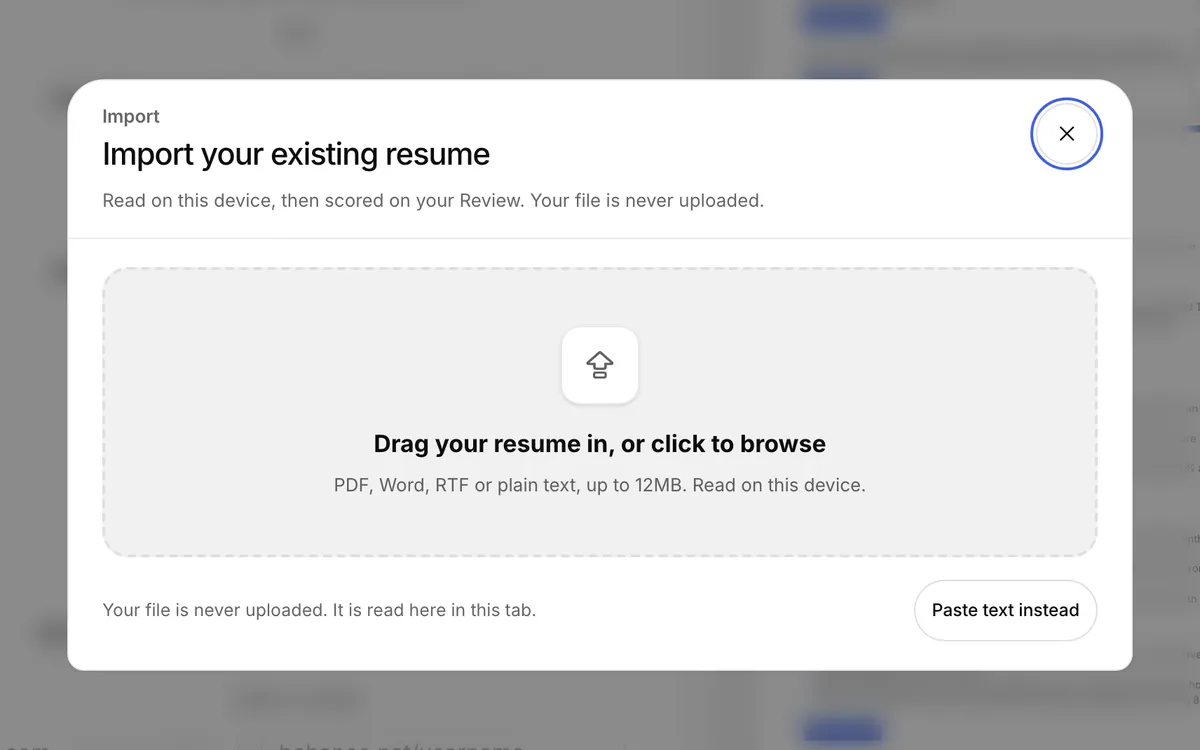
    If your PDF is a picture, such as a scan or a photo, ATSPrep can now read the text from it. The reading happens on your device, and the file is never uploaded.

    Two-column PDFs now import in reading order, one column at a time. If ATSPrep flags an import as hard to read, a retry with another file is free.

    The Studio import window
  15. An email when a next step is due

    Give a job's next step a date in the tracker. If you are signed in, we email you on that day, so a follow-up or an interview never slips.

    Turn the reminders off from the link in any email.

    A sample job open in the tracker with its next step and due date
  16. ATSPrep in Arabic

    The homepage, Studio, ATS checker, tools list and pricing page now read in Arabic, right to left. Arabic resumes download as PDF or Word.

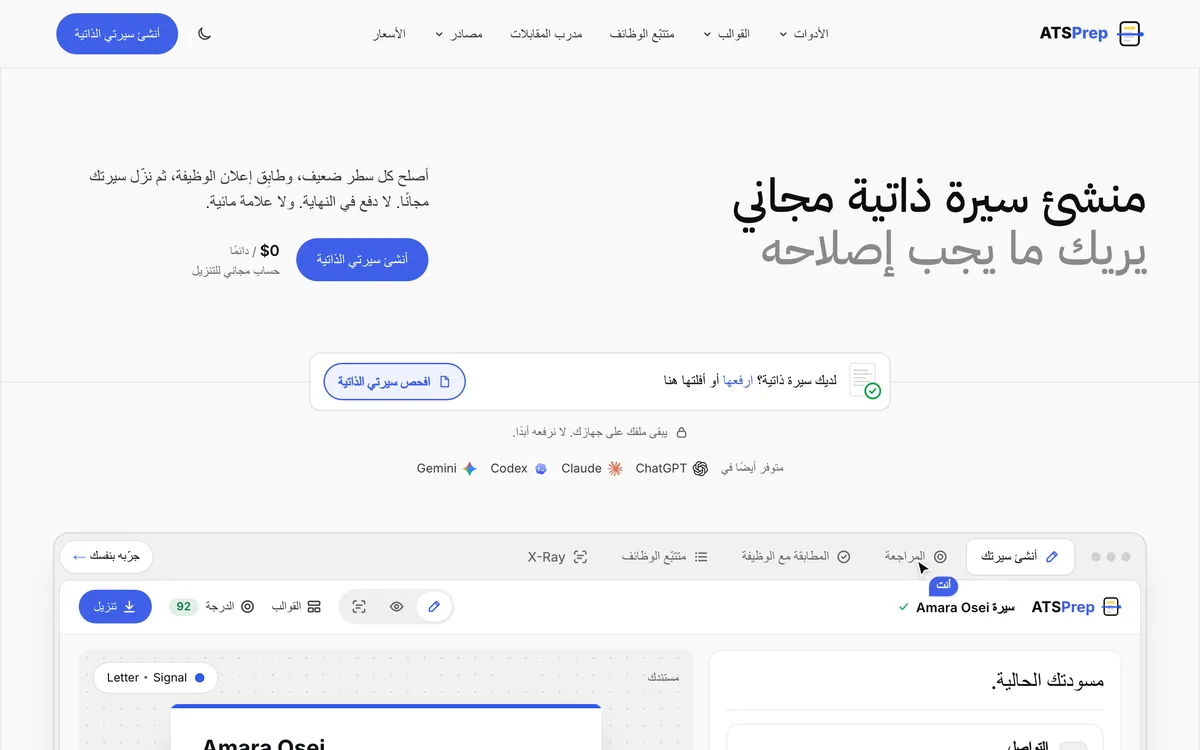
    The Arabic homepage, right to left
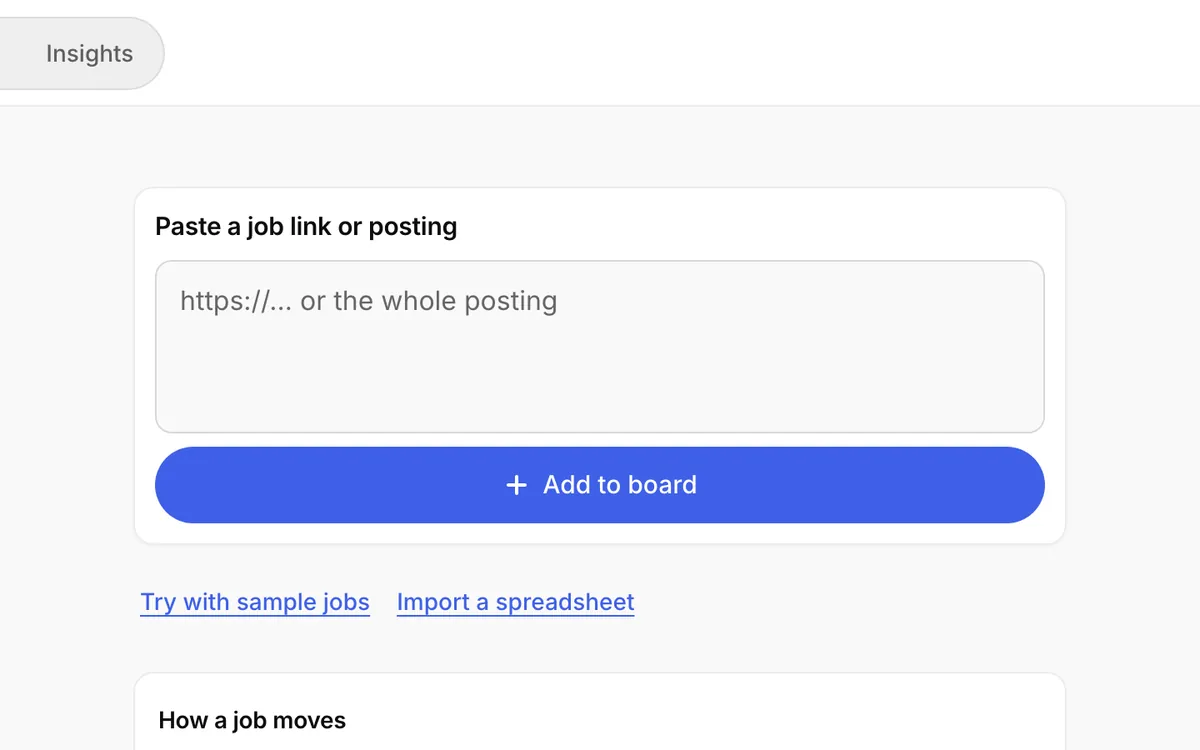
  17. Paste a LinkedIn job link, and ATSPrep fills in the title, company and job post for you. Greenhouse, Lever, Ashby and SmartRecruiters links work too.

    The tracker field for pasting a job link or posting
  18. The job tracker

    Track each application on a board or in a list with status tabs. Add a job by pasting its post, and see your search as a chart you can share.

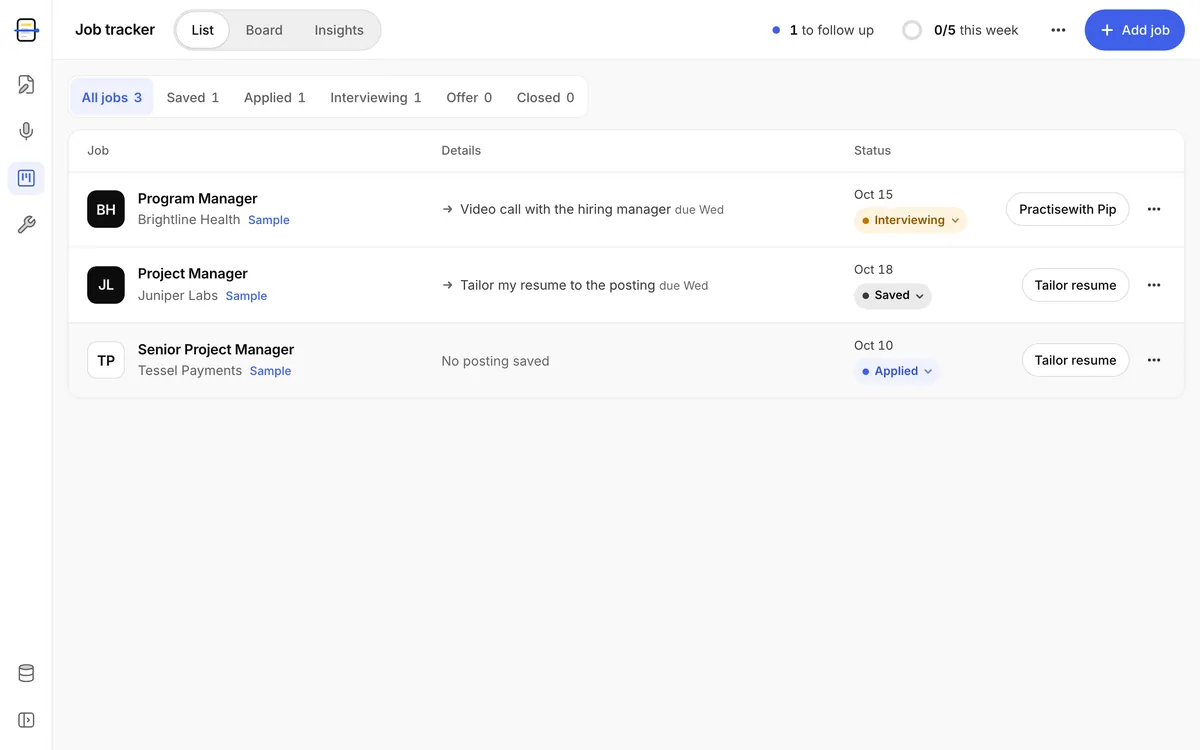
    The job tracker list with three sample jobs